You can start the Settings of RedSync as follows:
Menu -> Power-Ups -> RedSync Settings -> Edit Power-Up settings
RedSync opens the Settings window. You can select specific settings by clicking a tab at the top of the window.
Redmine Server Settings
Make the settings to access the Redmine server.
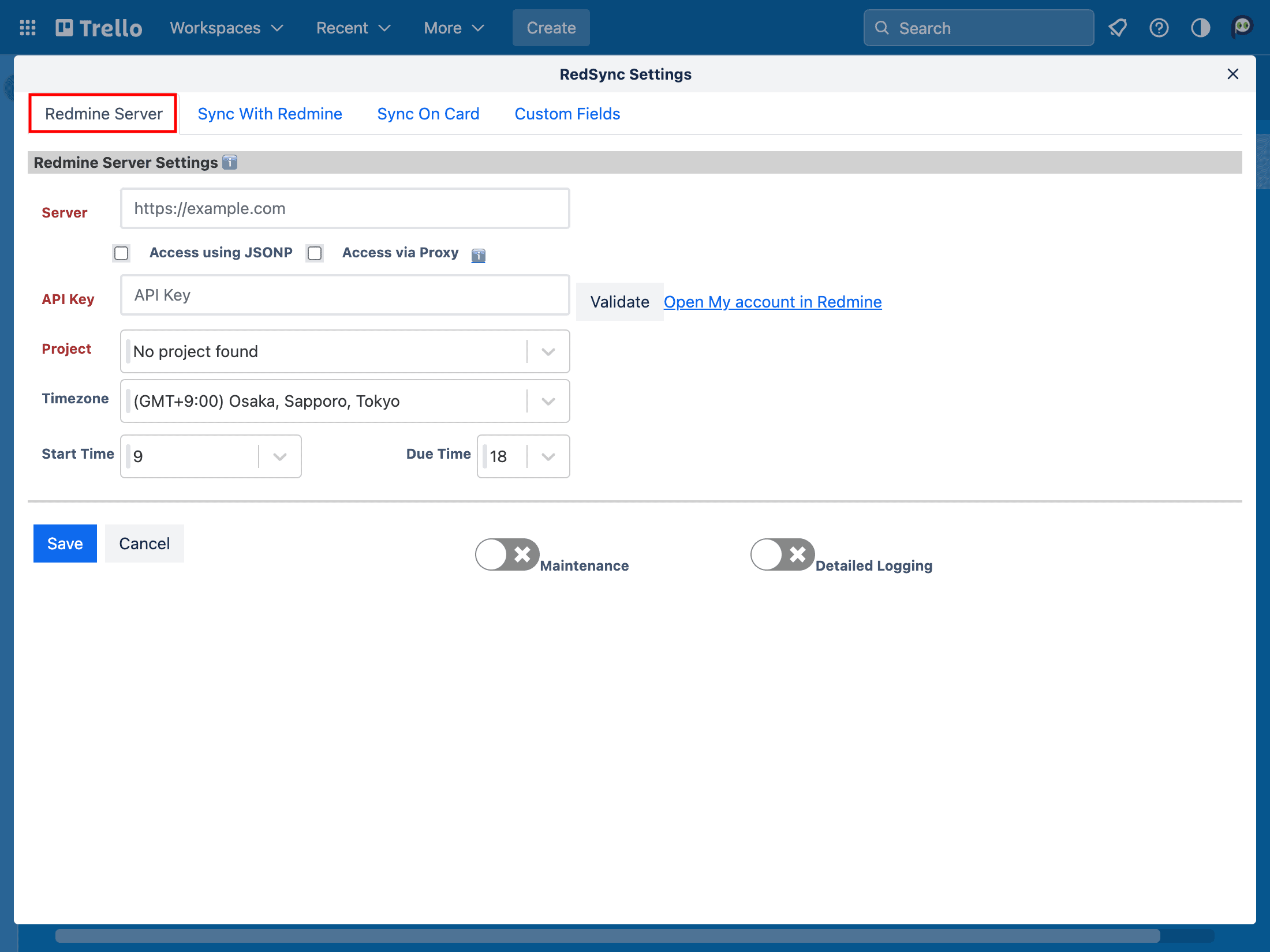
Server
Specify the URL of the Redmine server (HTTPS required).
Access with JSONP
RedSync accesses Redmine with JSONP API without CORS. However, the update from a Trello card to a Redmine issue is not supported. RedSync disables the setting items related to it and displays a ⛔ icon.
Access via Proxy
RedSync accesses Redmine via RedSync Proxy without CORS. It supports updating from a Trello card to a Redmine issue. Note that CORS should have priority because it provides better performance.
API Key
Specify the Redmine API Key.
RedSync uses the API Key to synchronize Trello cards and Redmine issues in the Sync with Redmine operation, which is described later. The API Key user should have the privilege to update Issues (e.g., be assigned to the project as a developer or a manager).
By clicking the Validation button, RedSync displays the user name of the API Key for confirmation.
You can get the API Key from Redmine.
Refer to How To Get Redmine API Key
Project
Select a project to be connected with Trello.
When trying to select a project, a Network Error may occur. A common cause of a Network Error is that the Redmine server does not support CORS. In this case, try enabling Access via Proxy. Enabling Access via Proxy allows access to Redmine servers that do not support CORS.
However, a Network Error can also occur for other reasons, such as an incorrect URL or the server being shut down.
Edit*
Click to unlock the above fields.
* Displayed conditionally. Once the server and project are determined, RedSync locks their fields. You have to unlock them by clicking the Edit button to change them.
When you change the project, RedSync archives the currently connected Trello cards or moves them to the specified List, if any, then creates new Trello cards from Redmine issues in the newly selected project.
When you change the Redmine server (and the project), you have to archive all the currently connected Trello cards beforehand because there may be Redmine issues that coincidentally have the same ID on the new Redmine server.
Timezone
Select a timezone for the Redmine server.
Start Time
Select the time of the Issue’s start date.
Due Time
Select the time of the Issue’s due date.
Redmine does not have a timezone for start and due dates. RedSync uses the above timezone to convert Redmine’s start and due dates to Trello’s start and due dates with time.
Sync with Redmine Settings
Make the settings for the Sync with Redmine operation.
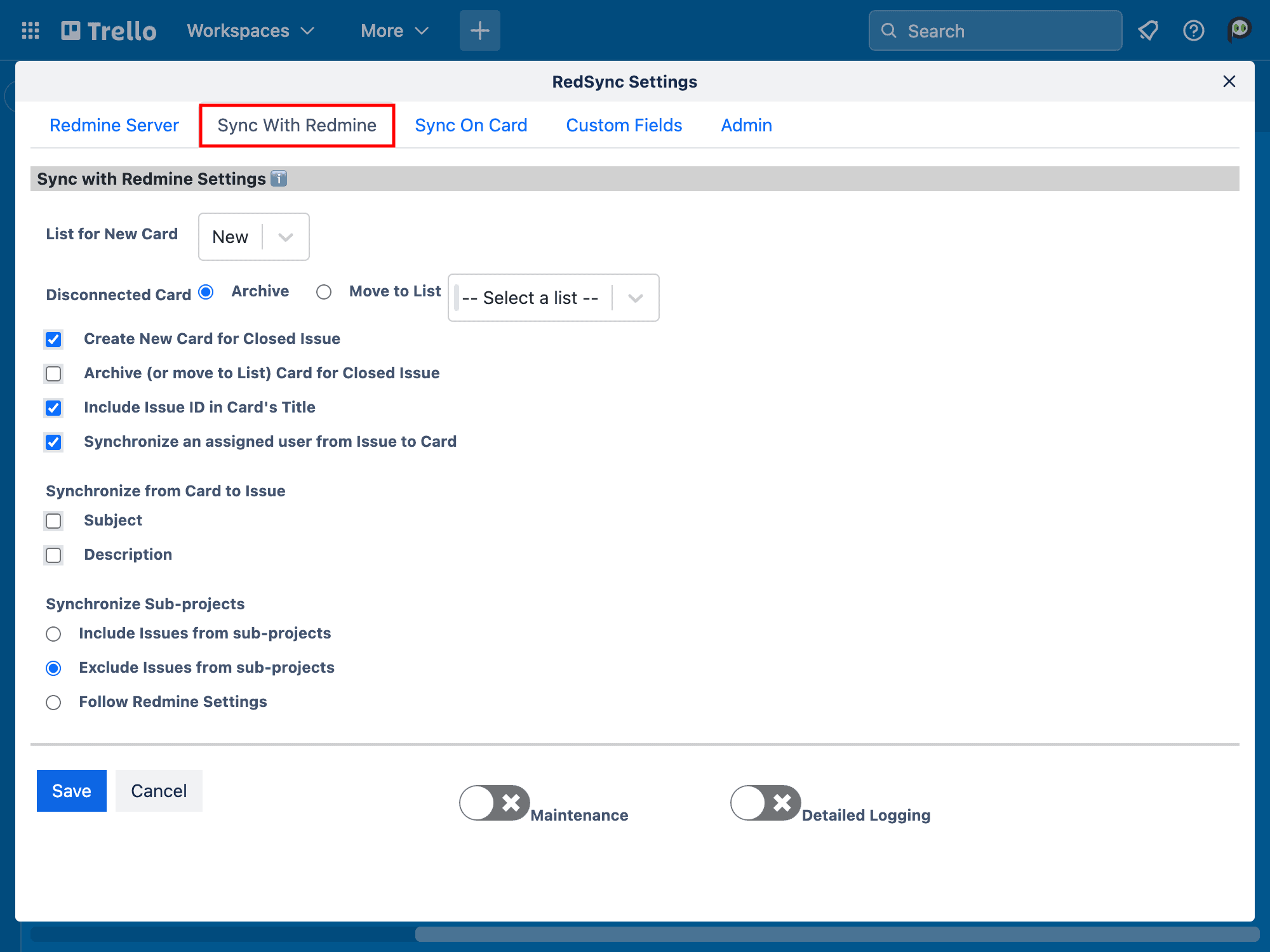
List for New Card
Select a List on which RedSync will create a new Trello card. After the creation, you can move it to any List.
Disconnected Card
If a Trello card has no connected Redmine issue or the connected Redmine issue is private, RedSync considers the Trello card disconnected. In such a case, you can ask RedSync for one of the following options:
Archive: If checked, RedSync archives the disconnected Trello card.
Move to List: If checked, RedSync moves the Trello card to the specified List. Later, you can archive those Trello cards from the list menu.
RedSync provides a tool to delete archived Trello cards.
Refer to the Archive Manager.
Create New Card for Closed Issue
If checked, RedSync creates a Trello card for a closed Redmine issue. Otherwise, RedSync ignores the closed Redmine issue.
Archive (or move to List) Card for Closed Issue
If checked, RedSync archives (or moves) a Trello card for a closed Redmine issue (to List).
Include Issue ID in Card’s Title
If checked, RedSync includes a Redmine issue ID as a prefix in a Trello card’s title. This is an exclusive setting for synchronizing the subject from a Trello card to a Redmine issue, as described below.
Synchronize an assigned user from Issue to Card
If checked, a Redmine issue assignee will be synchronized as a Trello card member.
Note that this synchronization will always be additive only. A Redmine issue can have only one assignee, while a Trello card can specify multiple members. RedSync cannot determine if the assignee has been removed from the Trello card members.
Synchronize from Card to Issue
- Subject
- Description
If checked, RedSync synchronizes the item from a Trello card to a Redmine issue.
If not checked, RedSync synchronizes it in the opposite direction. In both cases, RedSync overwrites any changes on the other side.
Synchronize Sub-projects
Specify if Redmine issues from sub-projects should be included.
- Include Issues from sub-projects
- Exclude Issues from sub-projects
- Follow Redmine Settings
If you configure Redmine to “Display sub-projects issues on the main project by default” in Settings, RedSync synchronizes issues from sub-projects.
Sync On Card Settings
Make the settings for the Sync On Card operation.
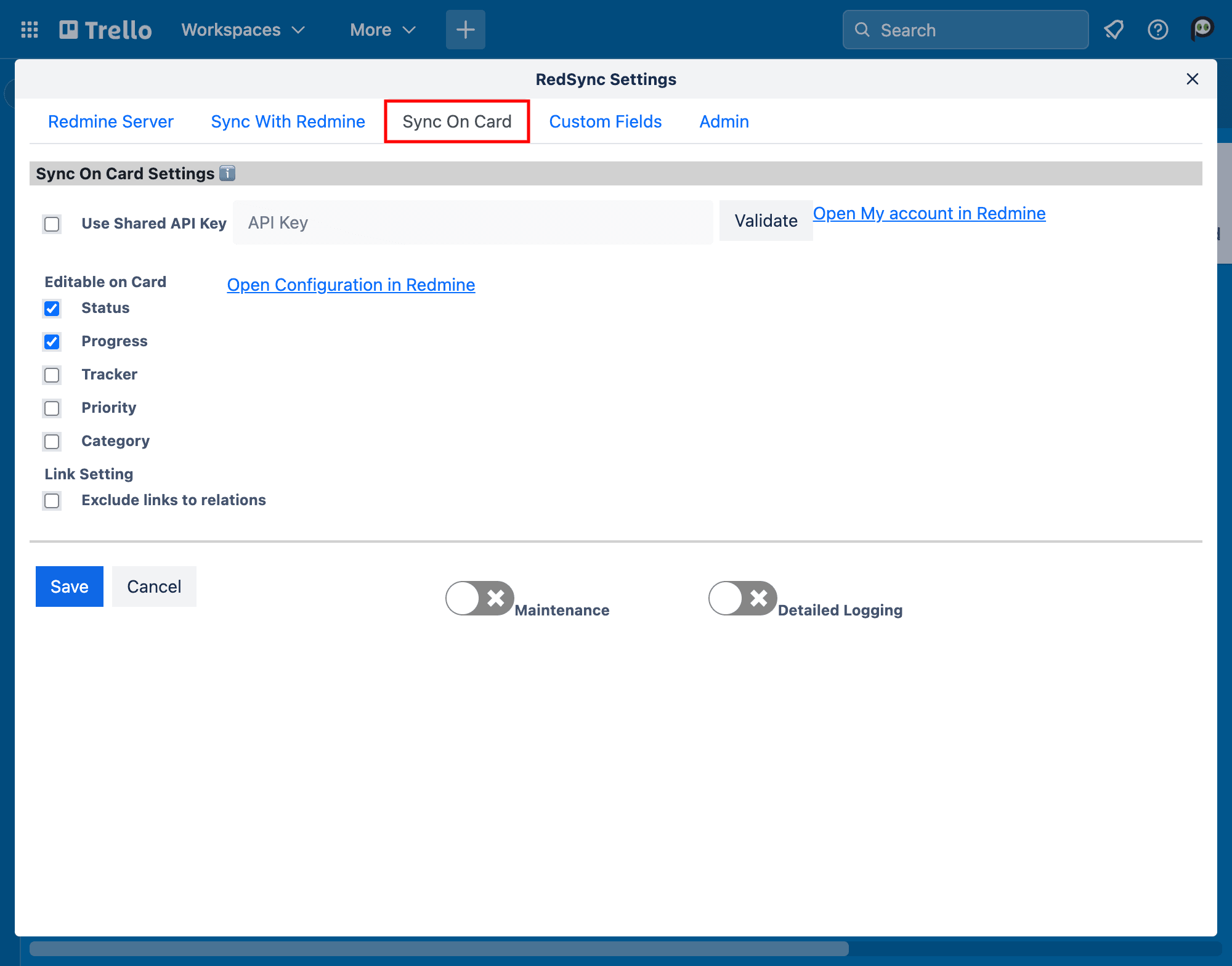
Shared API Key (Optional)
Specify the API Key from Redmine.
RedSync uses the Shared API Key to access Redmine when the Account Link has no API Key. Use of the Shared API Key is optional.
See the following for details.
How To Get Redmine API Key
Indivisudal API Key vs. Shared API Key
Editable on Card
If checked, the item is editable on a Trello card. Otherwise, it is read-only.
- Status
- Progress
- Tracker
- Priority
- Category
Redmine’s workflow, roles, and permissions also protect those items. Even if an item is editable in this setting, Redmine may reject the update.
Link Settings
Specify whether to display links to related issues on a Trello card. These links will be stored as card data, so there is a limit (here) to the number of links allowed. If the limit is exceeded, you can avoid it by not including links on the Trello card.
If checked, links to the related issues will not be displayed on the Trello card.
- Do not include links to related issues
Custom Field Settings
Make the settings to synchronize the custom fields between a Redmine issue and a Trello card.
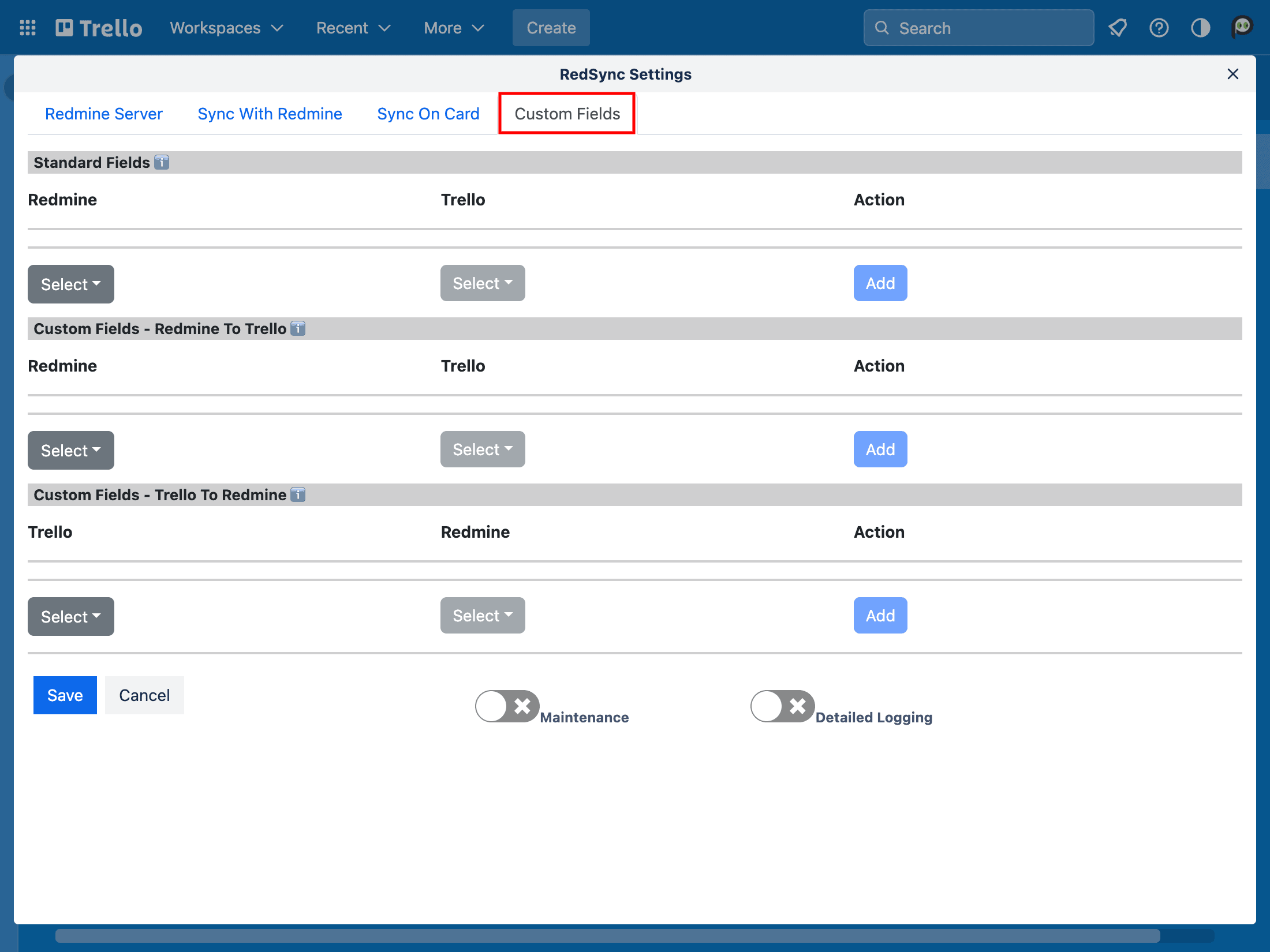
Standard Fields
Make the settings for synchronizing from Standard Fields defined in a Redmine issue to Custom Fields defined in a Trello card.
| Redmine’s Standard Fields | Types of Trello’s Custom Fields |
| project status tracker progress priority category id (issue number) assignee | Text |
RedSync shows you the Standard Fields in the Redmine Data section of a Trello card. However, Trello does not recognize the Redmine Data section; hence, you can not use a Standard Field to filter Trello cards, trigger a workflow (Butler), or show a Standard Field on the List. By mapping a Standard Field to a Custom Field, you can use it for those operations.
Custom Fields – Redmine to Trello
Make the synchronization settings from Redmine’s custom fields to Trello’s custom fields.
| Types of Redmine’s Custom Fields | Types of Trello’s Custom Fields |
| Link | Text |
| User | Text |
| List | Text |
| Key Value | Text |
| Long Text | Text |
| Text | Text |
| Bool | Text | Checkbox |
| Date | Text | Date |
| File | Text |
| Float | Text | Number |
| Integer | Text | Number |
| Version | N/A |
RedSync shows all custom fields associated with Redmine issues in the dropdown list to select. The dropdown list may contain custom fields unrelated to the current project; hence, please avoid selecting those custom fields.
Custom Fields – Trello to Redmine
Make the synchronization settings from Trello’s custom fields to Redmine’s custom fields.
| Types of Trello’s Custom Fields | Types of Redmine’s Custom Fields |
| Text | Text |
| Dropdown | Text |
| Number | Text |
| Checkbox | Text | Bool |
| Date | Text | Date |
RedSync shows all custom fields associated with Issues in the dropdown list to select. The dropdown list may contain custom fields unrelated to the current project; hence, please avoid selecting those custom fields.
Admin Settings
Allow other Board admins to execute Sync with Redmine
If checked, anyone with the Admin privilege can perform the Sync with Redmine operation. If not, only the person who made these settings can perform the Sync with Redmine operation.
Allow other Board admins to edit Gantt chart
If checked, anyone with the Admin privilege can edit the Gantt chart. If not, only the person who made these settings can do so.