
Authorize Account
Prerequisites: Assume that Stepra has been installed by an administrator and that the workflow has been defined.
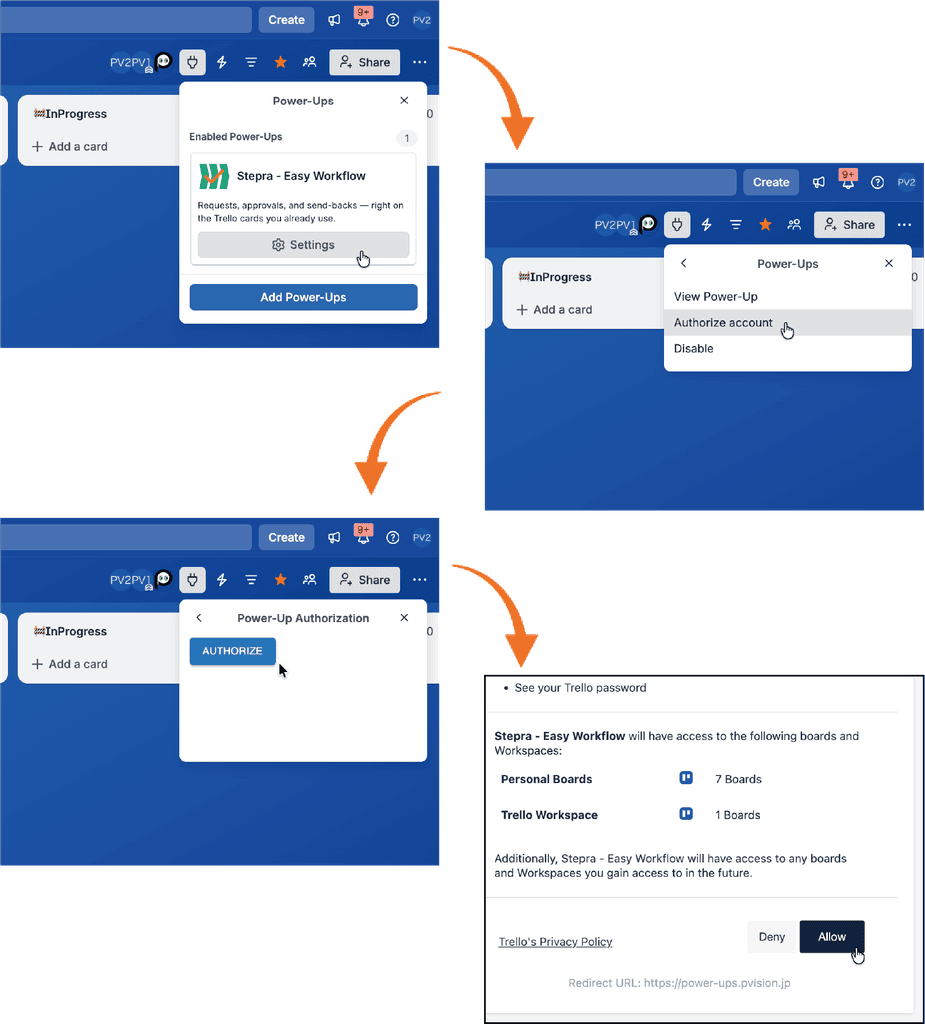
To use Stepra, you will need to authenticate your account. Be careful not to accidentally disable Power-Up, as doing so will uninstall it from this board.
Start Workflow
[Workflow]
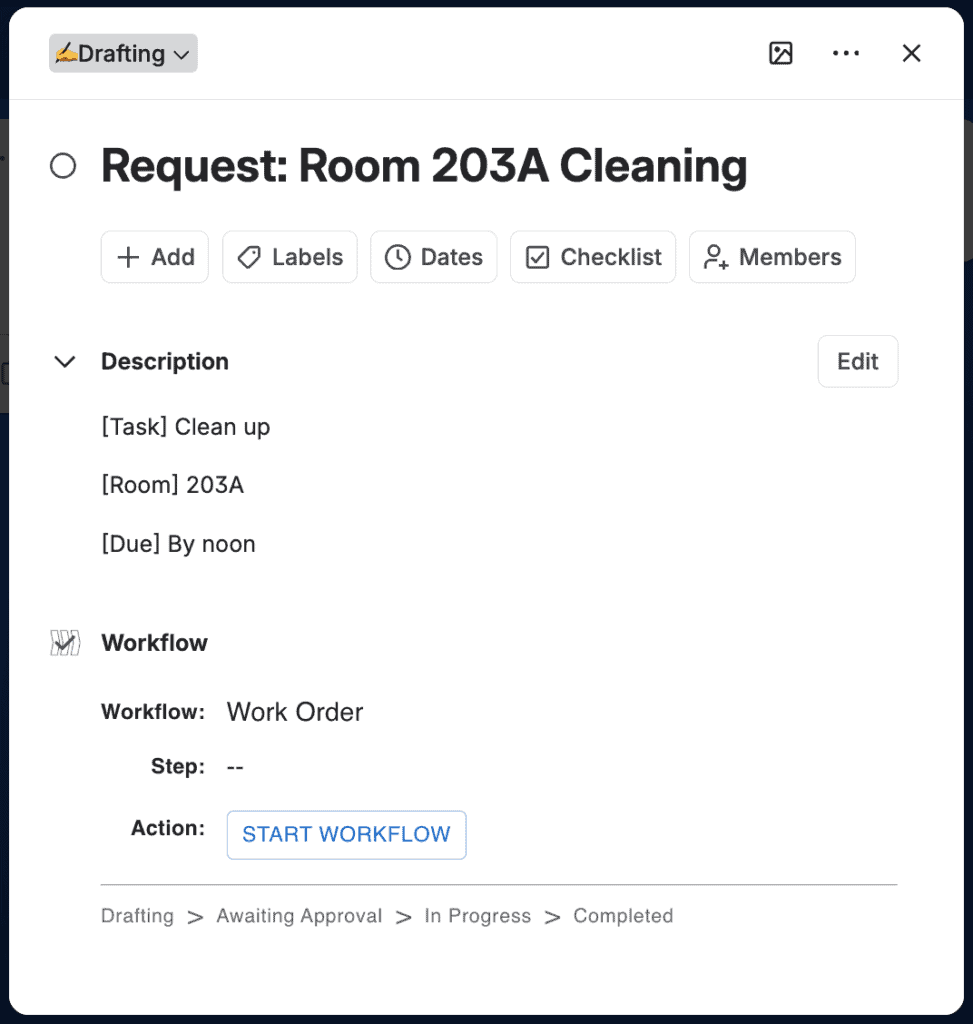
In the Pro plan, you can selected a workflow to apply to the card.
[START WORKFLOW]
You can start the workflow by clicking this button. Once the workflow starts, you cannot change the workflow to another one.
Execute Workflow
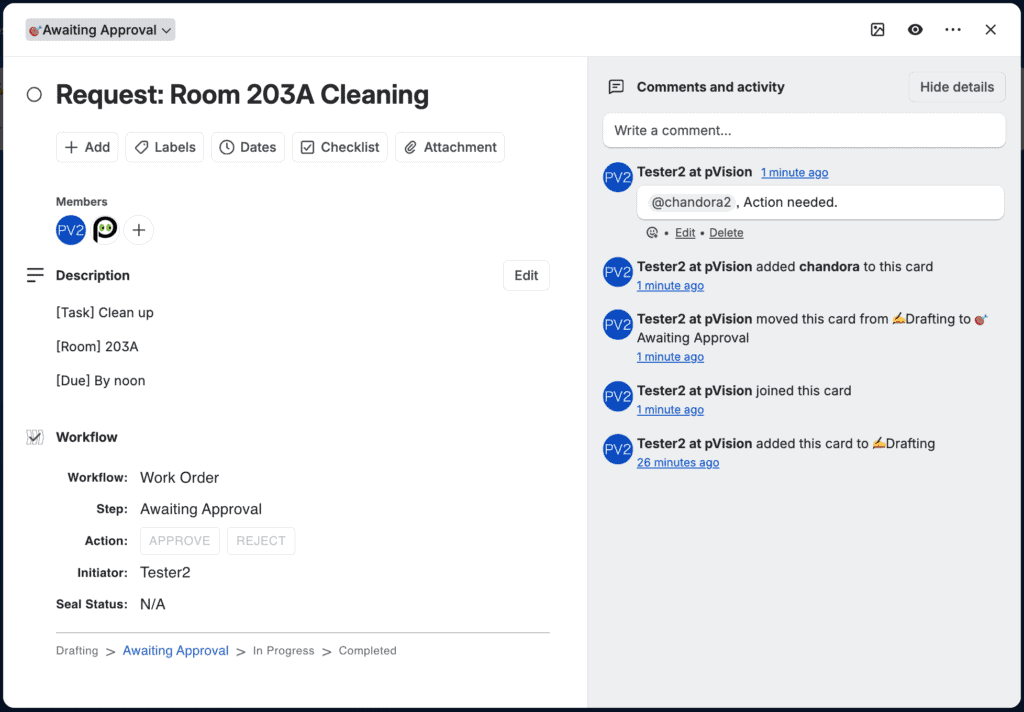
Stepra adds a workflow section to the card.
[Workflow]
This displays the workflow applied to the card.
[Step]
This displays which step in the workflow the card is currently in.
Q: What if the step shows as “undefined”?
A: The step will show as “undefined” in the following cases:
- The previously configured steps were deleted in [Edit Power-Up settings].
- The initial state is not defined in [Edit Power-Up settings].
Board administrators need to take the following actions:
- Change the current step directly to the appropriate one.
- Define the initial state in “Edit Power-Up settings”.
[Action]
Buttons for actions you can perform at this step will be displayed. By pressing a button, you can perform the action and proceed to the next step.
[Initiator]
This displays the user who initiated this workflow.
[Comments and activity]
If “Logging” is checked in the workflow definition, changes to the step will be recorded in the [Comments and activity] section of the card.