SimpleFlow is a Power-Up that enables simple approval workflows and step-based task management directly on Trello cards.
It allows you to manage the progress of tasks defined on a card according to a structured workflow.
It is especially suited for situations where you want to handle small operational workflows—currently managed via spreadsheets or verbal communication—directly in Trello, such as internal request processes or lightweight review-and-approval flows.
With standard Trello, you can only track tasks as “complete” or “incomplete.”
With SimpleFlow, you can:
- Manage task steps
- Handle approval processes
- Send items back for rework
This allows you to manage slightly more structured workflows on a per-card basis.
While it is not designed for complex workflows, it is ideal for teams that want to keep simple approvals and progress tracking entirely within Trello 😀
What SimpleFlow Is Not Designed For
SimpleFlow is not suitable for the following use cases. For these, consider more advanced workflow management tools. However, you may still be able to cover some cases with operational workarounds (→) 😊
- Defining multiple workflows
→ Alternative: Use separate boards for each workflow type - Assigning task owners within the workflow
→ Alternative: Use Trello’s member assignment feature - Dynamically assigning approvers based on the task (e.g., approver = manager)
→ Alternative: Register multiple approvers and assign them via operational rules
→ Alternative: Separate boards by department - Conditional branching in workflows (e.g., multi-level approval based on amount)
→ Alternative: Define multiple possible next steps and let users choose based on conditions
Difference from List-Based Workflow Management
In Trello, you can simulate workflows by moving cards between lists.
However, this approach has limitations:
- Anyone can move cards anywhere
- There is no record of who approved what
In other words, workflow “control” depends entirely on users.
SimpleFlow solves these issues by:
- Restricting available actions based on the workflow
- Recording who performed each approval and when
How It Works
Card-Level Operation
First, let’s look at how users interact with it on a card.
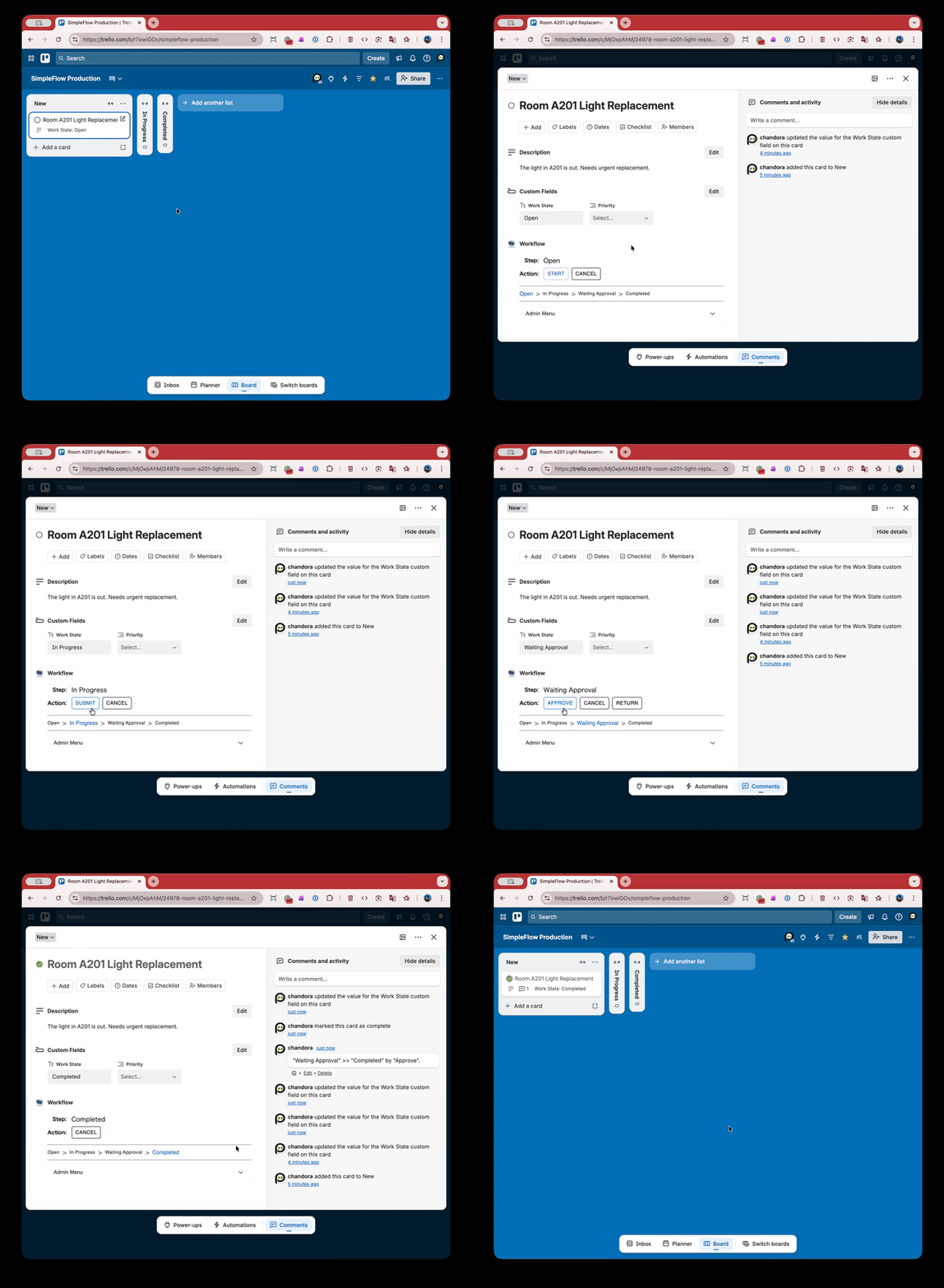
(If the GIF does not play, try opening the image in a new tab.)
On the card, you will see:
- The current workflow step (e.g., “Submitted”)
- Buttons for actions available at that step (e.g., “Start”, “Cancel”)
Available actions change depending on the current step.
Users move the workflow forward by selecting and executing these actions.
Defining the Workflow
Next, let’s look at how this behavior is implemented.
In SimpleFlow, each step in a workflow is defined as a state, along with actions.
When an action is executed, the state changes, advancing the workflow.
These relationships are defined using a state transition table:
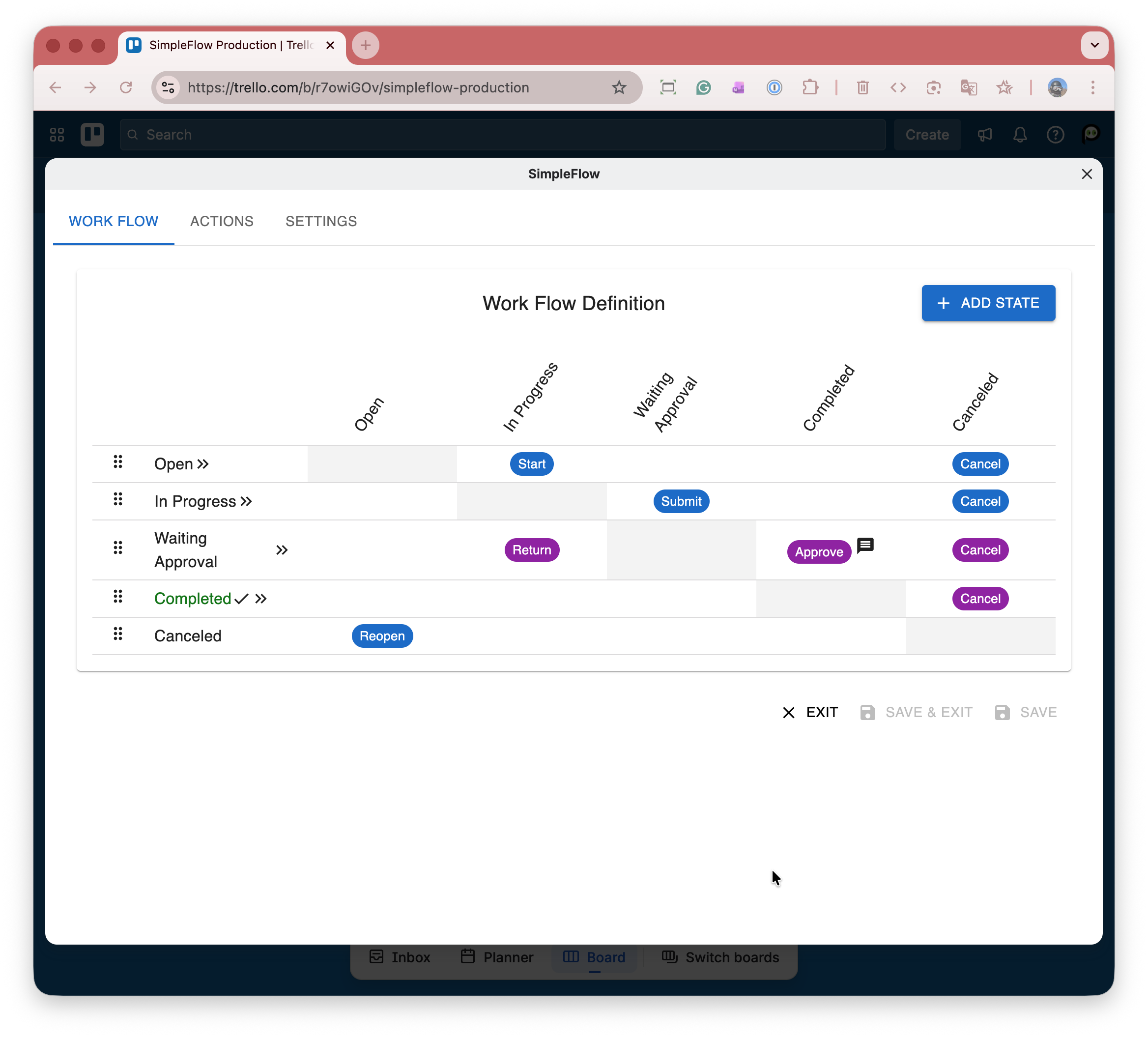
This table represents how states transition from one to another.
- Rows: Current state
- Columns: Next state
- Cells: Action that triggers the transition
This corresponds to a workflow like:
[] = state, () = action
[Submitted] – (Start) – [In Progress] – (Finish Work) – [Pending Approval] – (Approve) – [Completed]
Following this workflow:
- A worker clicks “Start” to begin work
- After finishing, clicks “Finish Work”
- An approver clicks “Approve” or “Reject”
States and actions can be freely defined, allowing flexibility for various workflows.
You can also restrict actions to workers or approvers, enabling simple approval flows.
Integration with Trello Automation
If you are using a paid Trello plan, you can write the current state to a Trello custom field whenever it changes.
This allows you to trigger Trello automation (via Butler) based on state changes.
For example:
- Move cards to different lists depending on their state
- Send approval request emails when work is completed
Setup
Open the SimpleFlow settings screen from the Power-Up menu to configure it.
The state transition table provides a visual and intuitive way to define workflows, allowing you to set them up quickly and start using them right away.
For more details, please refer to the user guide.
Support
Report Issues
Please submit any issues to:
TODO: Add GitHub issue link
Requests / Feedback
We welcome your feedback and feature suggestions.
TODO: Add GitHub issue link
Contact
If you want a direct contact, please send an email to:
TODO: simpleflow at pvision.jp